Space Engineers 2 Blueprint: Save, Place and Build in Survival
- 📦 The Key Difference: There Is No Projector Block
- ⚒️ How to Save a Space Engineers 2 Blueprint: The Controls
- 📍 Placing: The Automatic Support Pillar
- 🔧 Welding Block by Block in Survival
- 💡 Getting Rid of a Projection
- 🔗 Workshop: Publish, Replace, Back Up
- 🗓️ Bringing Ships Over from Space Engineers 1
- 💰 What a Blueprint Really Costs
- ❓ Frequently Asked Questions about the Space Engineers 2 Blueprint System
- ✨ Conclusion
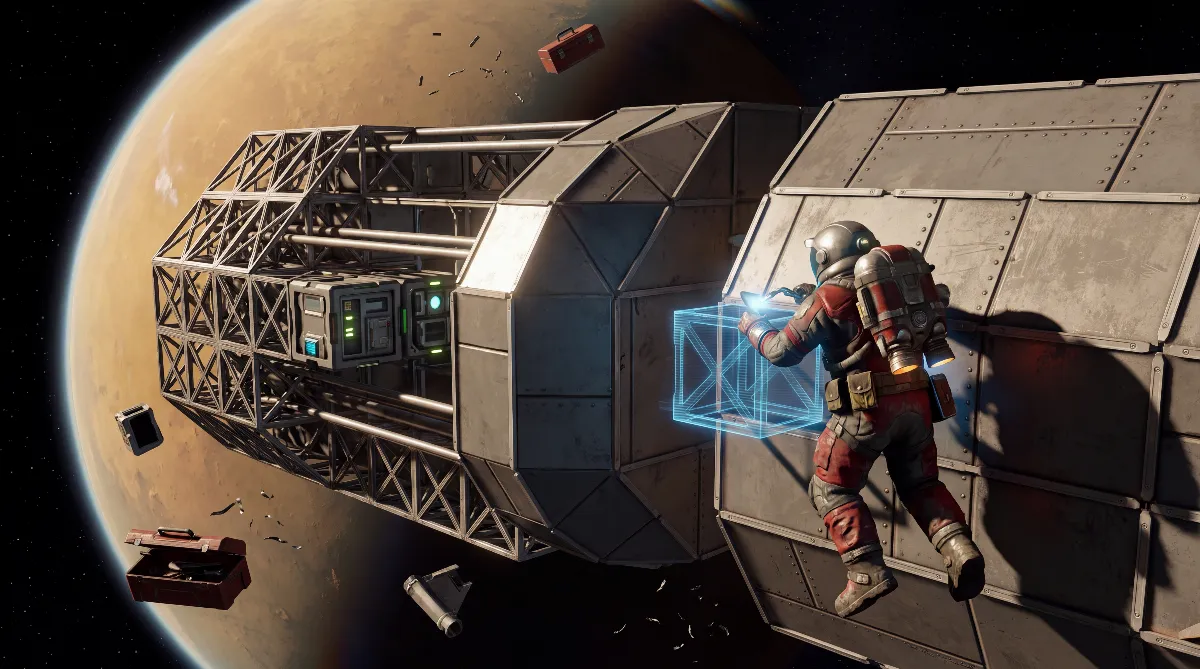
A Space Engineers 2 blueprint is a saved copy of a complete grid: a ship, a base or just a reusable part. You create it with a shortcut, pull it back up from the blueprint menu and place it in the world as a projection. In survival, though, that projection is not a finished ship but a building template you have to weld up block by block.
This guide covers the whole chain: saving, placing, building in survival, removing, publishing on the Steam Workshop, and bringing over ships from Space Engineers 1 with Keen's own Grid Exporter.
📦 The Key Difference: There Is No Projector Block
If you come from the first game, the first thing you look for is the projector. It doesn't exist here. A Keen employee confirmed in the game's Steam discussions that projecting through a dedicated block is not possible yet. Instead, saved designs live directly in the build menu: “Blueprints are blocks in the G menu so drag and drop in character toolbar.”
Your saved ship behaves like a block on your toolbar: select, aim, click. No power, no range limit in between. The price: without a projector block, there are no automated welding setups like in part 1. If you are planning that kind of shipyard, you will have to wait.
⚒️ How to Save a Space Engineers 2 Blueprint: The Controls
Creating one is quick. The following bindings come from the community-maintained Space Engineers 2 wiki on wiki.gg and from answers in the Steam discussions; Keen has not published an official key overview for this.
| Action | Input | What happens |
|---|---|---|
| Create a blueprint | Ctrl + B, then left-click | Aim the crosshair at the grid, enter a name and description, retake the screenshot if needed, save |
| Copy grid | Ctrl + C | Puts the targeted grid on the clipboard |
| Paste from clipboard | Ctrl + V | Creative mode only |
| Open the blueprint menu | F10 | List of all saved designs, including Workshop functions |
| Build menu with Blueprints tab | G | Entries can be dragged onto the toolbar |
| Rotate projection | J | Rotates the preview before placing |
| Rotate preview (creative) | Hold Ctrl + WASDQE | Fine alignment before placing |
A design doesn't have to be a whole ship. The community wiki explicitly mentions smaller reusable parts as well: decorations, wing shapes, modular rooms. In everyday play, that is the bigger time saver: an engine section you drop into every new ship instead of shaping it again.
📍 Placing: The Automatic Support Pillar
When you place a design on a planet, something happens that many players first take for a bug. The game automatically builds a temporary support under the projection so the ship doesn't drop straight to the ground. In the Steam discussions it is described as a “temporary Pillar”; other players call it a “support beam”.
One tip from the same source: don't place designs directly above an existing station. The support then connects to the station and has to be cut out afterward, with the risk that the ship gets stuck. Enough distance saves you that work. Community reports also note that the support blocks don't always appear reliably; this is not officially confirmed.
🔧 Welding Block by Block in Survival
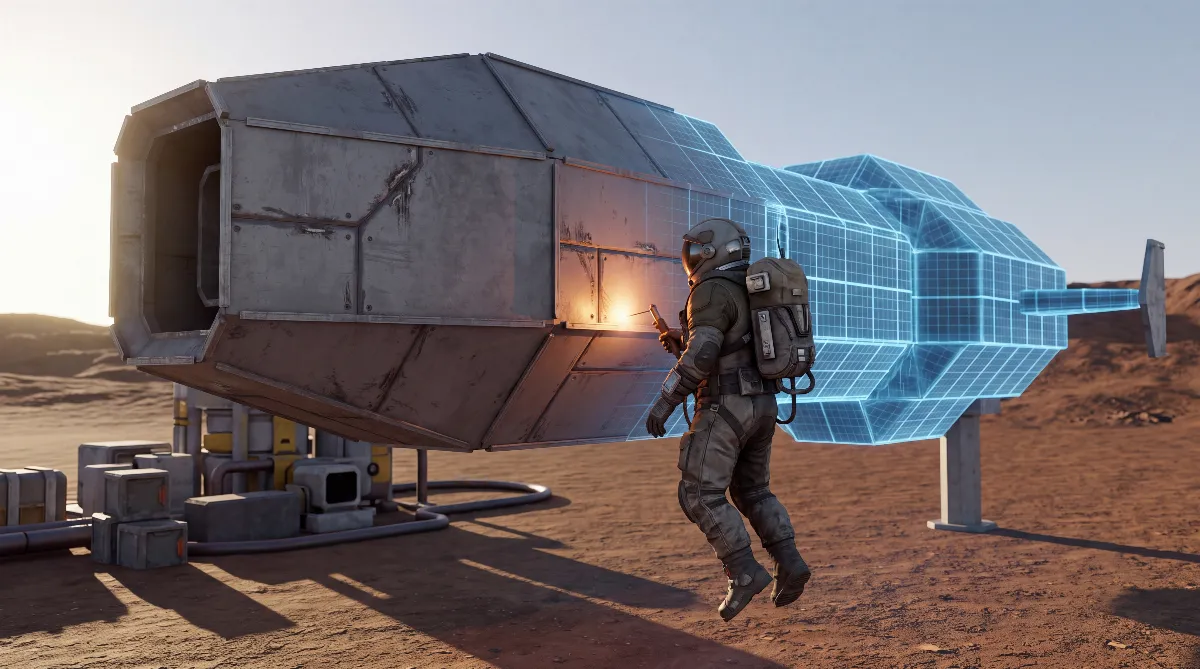
This is where creative and survival part ways. In creative mode, the ship stands finished after one click. In survival, you get a projection you build up yourself, block by block, welder in hand. In survival, a Space Engineers 2 blueprint is a building plan, not a shortcut.
That is where the system's biggest open weakness lies. Blocks behind other projected blocks can't be reached. Keen's own feedback portal states it plainly: “it appears to be impossible to weld a projected block if it's behind another projected block.” On a hull with an interior, that affects practically every other block.
The workaround a community helper describes on Keen's forum works, but it is clunky:
- Step 1: Delete the projection of the block in the way
- Step 2: Weld the block behind it as usual
- Step 3: Bring the deleted projection back with Ctrl + Z; Ctrl + Y restores it if you go back too far
For undo to work in survival, the projection must have been deleted, not built over. And the order matters: interiors first, outer hull last, and you will hardly ever need the trick. A setting like in part 1 that only shows the next block to weld does not exist. The answer in the Steam thread about it is short: “Nope, doesn't exist yet.”
💡 Getting Rid of a Projection
A misplaced projection stays until you remove it. Two methods are mentioned in the Steam discussions, neither officially documented:
| Situation | What to do |
|---|---|
| Projection untouched, nothing built yet | Aim at it and press Ctrl + X to delete the entire projection |
| Parts already built | Right-click + drag removes the projection along a line |
| Larger areas | Right-click + Shift + drag removes a whole layer; repeat as needed |
The best advice here comes from Keen's community page itself and costs nothing: test a fresh design in a copy of your save first, before you place it in your main world.
🔗 Workshop: Publish, Replace, Back Up
Keen explicitly lists Steam Workshop support as a feature on the game's store page, so you can share designs and worlds there. The route goes through F10: select the entry, click Publish.
For changes to an already published design there is Replace. Copy the modified grid to the clipboard, open the design window, select the old entry and replace it. According to the community wiki, the local version and the Workshop entry are updated at the same time.
That this doesn't always work is documented. Keen's support portal has a report where the screenshot doesn't update after replacing and the old version appears when pasting. Users traced the cause to outdated grid.json files in the two Space Engineers 2 temp cache folders in the Roaming directory under AppData. Keen marked the case “Need More Information” and could not reproduce it at last check. If it affects you, clearing those cache folders helps.
🗓️ Bringing Ships Over from Space Engineers 1
This is the feature most overviews leave out: Keen provides a Grid Exporter that lets you bring grids over from the first game. Keen itself calls it a developer tool and describes it as “not user-friendly” with many limitations. The process according to Keen's own guide:
- In Space Engineers 1, load a world with experimental mode enabled, subscribe to the Grid Exporter mod on the Workshop and enable it
- Target the grid; the red-green-blue axis on the target block shows you have the right one
- Type
/exportin chat. With a parameter, unknown blocks are replaced by armor; without one, they are dropped - The chat shows the path of the generated file
- Copy the file into the
SE1GridsToImportfolder in the Space Engineers 2 AppData directory - The next time you load a world, the grid is converted and shows up in your blueprints
Keen is open about what gets lost: “The conversion process from Space Engineers to Space Engineers 2 is imperfect and many blocks will not be exported.” Plus: “block names will be lost, and subgrids are not supported.” Subgrids are the hard limit: every rotor turret, every piston build and every wheeled chassis stays behind.
Also expect files that won't load at all. Keen's support portal has an open report on this; one user removed every block except the bare armor shell until the import worked. Conveyor tubes, gyroscopes and simple doors went through. There was no Keen reply at our last check, so splitting the grid into pieces is the fastest way to find the culprit.
💰 What a Blueprint Really Costs
One expectation needs correcting first: a Space Engineers 2 blueprint saves you no material in survival. You pay for every block in full, exactly as with free building. Going by the community wiki's values, a Light Armor Cube with a 0.5 meter edge costs a single Steel Plate. A hull of 500 such cubes therefore costs you 500 Steel Plate, whether built freehand or welded up from a projection. Keen has not officially published these block values.
What you save is planning work and building mistakes. You don't have to find the shape a second time, symmetry errors show up beforehand, and a destroyed ship can be rebuilt identically. Where your material comes from is covered in the guide to finding ores and resources; which blocks you can choose from is in the overview of all block types.
❓ Frequently Asked Questions about the Space Engineers 2 Blueprint System
Is there a projector block in Space Engineers 2?
No. A Keen employee confirmed in the Steam discussions that projecting through a dedicated block is not possible yet. Saved designs sit as entries in the G menu instead and can be dragged onto the toolbar.
How do I save a ship as a blueprint?
Aim the crosshair at the grid, press Ctrl + B and left-click. Then enter a name and an optional description and save. F10 opens the list of all your designs.
Why can't I weld hidden blocks?
Because projected blocks behind other projected blocks currently can't be reached; Keen's feedback portal says so. The workaround: delete the projection in the way, weld the block behind it and bring the projection back with Ctrl + Z.
How do I get rid of a misplaced projection?
Aim at it and press Ctrl + X. If something is already built, remove the rest with right-click and drag, or right-click, Shift and drag for whole layers. Both come from the community, not from official documentation.
Can I bring my ships over from Space Engineers 1?
Partly. Keen's Grid Exporter transfers grids via the /export command into the SE1GridsToImport folder. Keen itself points out that many blocks are not transferred, block names are lost and subgrids are not supported.
Do blueprints save resources in survival?
No. Every projected block has to be fully welded and costs exactly the same components as free building. The gain is in build time and repeatability.
✨ Conclusion
The system is quicker to use than its predecessor's and at the same time less finished. Saving and placing take two shortcuts, and the support pillar takes care of a tedious job. On the other hand, the projector block is missing, hidden blocks need an undo trick, and welding shipyards can't be built for now.
Knowing that, you build differently: interiors first, outer hull last, and test every design in a copy of your save first. If you are about to put together your first vessel, the guide to building your first ship lists the parts it needs.
Sources checked: the game's Steam store page, Keen's official Grid Exporter guide on 2.spaceengineersgame.com, Keen's support and feedback portal support.keenswh.com, and the game's Steam discussions. Key bindings and removal shortcuts come from the community-maintained Space Engineers 2 wiki on wiki.gg and from user answers; Keen has not officially confirmed them, and there is no official wiki for the game. As of: October 8, 2026.